

Free Cut List Optimizer
This free cut list optimizer turns a parts list into sheet-by-sheet cutting layouts for plywood, MDF, and dimensional lumber — with a numbered cut order, shared fence settings, a shopping list, printable cut sheets, and part labels. No account, no daily limit, no watermark. Type your parts below (or paste them from a spreadsheet, SketchUp, or Fusion 360) and the plan updates instantly.
Cut-List Optimizer
Paste or type your cut list, tell it what stock you’re buying (or already have), and get sheet-by-sheet layouts with a numbered cut order and shared fence settings — free, no account, no daily limit.
Your parts
| # | Part | Length | Width | Qty | Material | Grain |
|---|
Your stock
| Stock | Type | Size | Have | $ each |
|---|
🔧 Numbered cut order — grouped by fence setting so you move the fence as few times as possible
Usable offcuts
📩 Email me my cut sheets
Get this exact cut plan — … — in your inbox so it’s on your phone at the saw and at the lumber yard.
Affiliate links above may earn this site a small commission at no extra cost to you. Tool by Rogue Engineer — the same optimizer our woodworking plans are cut from. Layouts are guillotine cuts sized for a table saw or track saw; always verify measurements before cutting.
How this cut list optimizer works
Most cutting calculators treat a sheet of plywood like a math puzzle and hand you a layout no table saw can actually cut. This cut list optimizer plans guillotine cuts only — every cut runs edge to edge of the piece in front of you, exactly the way a table saw or track saw works. Sheets are planned rip-first: the optimizer groups every part that shares a width into common strips, so you set the fence once, rip everything at that setting across all your sheets, then crosscut each strip to length with a stop block. Parts cut at the same fence setting come out identical — which is the difference between a cabinet that squares up and one that racks.
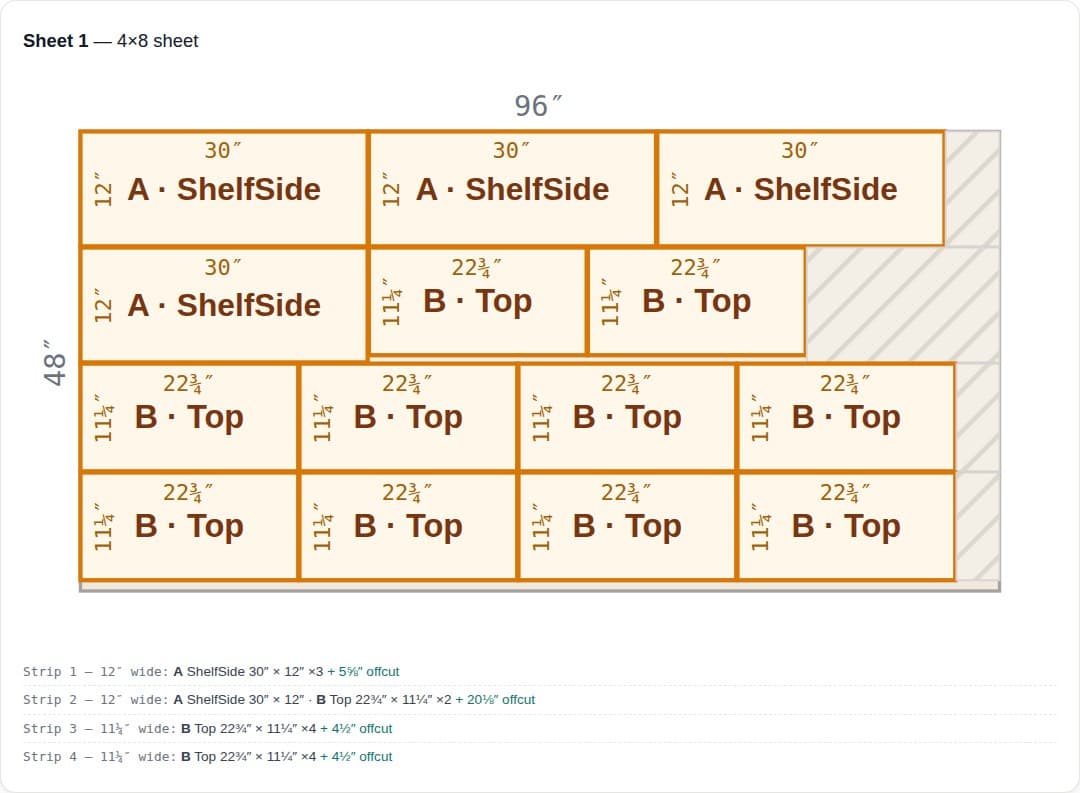
Behind the layout there’s more going on than first-come-first-served packing. The cut list optimizer accounts for your saw’s kerf on every single cut, tries multiple orientations for any part you haven’t grain-locked (including plans where some parts run lengthwise and others run across), and rescues stragglers into the tails of wider strips — crosscut, then rip down to width — before it ever adds another sheet to your shopping list. Boards get the same treatment: a 2×4 or 1×6 is nested like a narrow sheet, so full-width cleats and ripped slats share stock, and the cut order tells you when to rip and when to crosscut.
How to use the cut list optimizer
1. Enter your parts. One row per part: name, length, width, and how many you need. Fractions like 23¾ or 23 3/4 both work. Leave the width empty for parts cut from boards — 2×4 cleats, trim, face frames — and give a board part a narrower width when it needs ripping down. Check Grain on anything visible so its length stays locked along the sheet’s grain.
2. Tell it your stock. Pick from presets (4×8 sheets, 4×4 panels, 5×5 Baltic birch, boards from 6 to 16 feet) or enter custom sizes. Leave the quantity empty for shopping mode and the cut list optimizer figures out how many sheets and boards to buy; add a price per sheet and you’ll get the material cost too.
3. Cut in the order shown. The numbered cut order is grouped by fence setting so you move the fence as few times as possible. Print the cut sheets (one sheet per page), download the PDF, or print Avery-compatible labels for every part and offcut so nothing on the bench goes anonymous.
Import your cut list from SketchUp, Fusion 360, or a spreadsheet
If your project already lives in CAD, don’t retype it. From SketchUp, export the parts list with OpenCutList or the built-in Generate Report — both paste straight in, fractions and millimeters included, and thickness columns are ignored automatically. From Fusion 360, the free ExportCutlist add-in produces a CSV this page reads as-is. Plain spreadsheet rows from Excel, Google Sheets, or Numbers work in almost any column order.
Cut list optimizer FAQ
Is this cut list optimizer really free?
Really free — no account, no daily calculation limit, no watermark, no subscription. We sell woodworking plans; the optimizer exists so you build more. That’s the whole business model.
What does grain lock do in a cut list optimizer?
Grain lock keeps a part’s length running along the sheet’s grain so the optimizer can’t rotate it 90° to save material. Lock anything visible — shelves, sides, door panels — and leave cleats and hidden parts unlocked for a tighter fit.
Why are the cuts grouped by fence setting?
Moving the table-saw fence is where time goes and accuracy dies. The optimizer plans rip-first, guillotine-style cuts and groups every strip that shares a width, so you set the fence once, rip everything at that width across all sheets, then move on — and matching parts come out identical.
What saw kerf should I use?
⅛ inch covers standard table-saw and circular-saw blades. Thin-kerf blades are 3/32 inch. Only use zero kerf for CNC or laser cutting where the toolpath compensates for the cut width.
Can it optimize cuts from boards, not just plywood sheets?
Yes — leave a part’s width empty and it’s packed by length into board stock from 6 to 16 feet long. Give each board a type (2×4, 1×6…) and tag parts to match: parts stay on the right stock, anything too wide gets flagged, and a part narrower than the board gets a planned rip — fence-grouped in the cut order, with multiple strips per board when they fit. Sheet parts and board parts optimize side by side in one plan, with one combined shopping list.
Can I import a cut list from SketchUp or Fusion 360?
Yes — export it as CSV and paste it in. SketchUp: OpenCutList’s parts-list export or the built-in Generate Report (LenX/LenY/LenZ columns are sorted automatically — the two biggest become length × width, thickness is dropped). Fusion 360: the free ExportCutlist add-in’s CSV, including its cutlistoptimizer.com format. Fractions, decimals, and metric (mm/cm) all convert automatically.
How do I paste a cut list from a spreadsheet?
Copy the rows in Excel, Google Sheets, or Numbers and use the Paste from spreadsheet button. Columns can be in almost any order — part, length, width, quantity, material — and fractions like 23¼ or 23 1/4 both work.
Save it, share it, take it to the shop
Your plan saves automatically in your browser, and the share link carries the whole thing — parts, stock, kerf — so you can open it on your phone at the saw or send it to a friend. Email yourself the cut sheets and they’re waiting at the lumber yard. The usable offcuts list tells you which drops are worth labeling for the next project.
And if you’d rather skip the design work entirely: every one of our woodworking plans ships with an optimized cut list, along with step-by-step diagrams — the floating shelves are a free favorite to start with. Build more, guess less.